Poor Bunny Cross-Platform Guide: PC, Mobile & Tablet Tips
Ever started playing Poor Bunny on your PC during a lunch break, only to find your controls feel totally different when switching to your phone after school? You are not alone. Many players love the fast-paced action of collecting carrots, but they struggle when moving between different devices. Mastering the traps and high scores requires a consistent feel, whether you are using a mouse, a keyboard, or a touchscreen.
The good news is that this game is designed to work everywhere. Because it uses modern web technology, you can jump from a desktop computer to a tablet without losing the fun. However, each device has its own quirks. To get the best scores and unlock those 100+ cute skins, you need to know how to optimize your setup. In this guide, we will show you how to dominate the leaderboard on any hardware.
Are you ready to become a platforming pro? Our goal is to make sure your experience is lag-free and responsive. Before we get into the technical details, you should play the game to get a feel for the current controls on your primary device. Let’s dive into the ultimate cross-platform mastery guide for Poor Bunny!
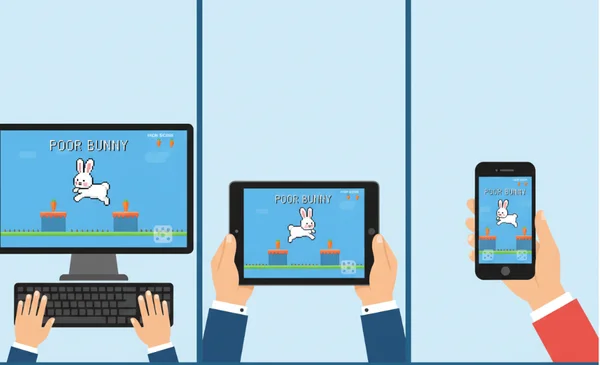
Poor Bunny on PC: Optimizing Your Desktop Experience
Playing on a PC or laptop is often the preferred choice for competitive players. The larger screen and physical buttons allow for precise movements that are hard to beat. If you want to climb the global rankings, the desktop version of Poor Bunny online is your best friend. However, even a powerful PC can run into issues if the settings are not right.
Keyboard vs. Controller: Which Input Method Wins?
When you play Poor Bunny on a desktop, you have two main choices: the keyboard or a game controller. Most casual players stick to the keyboard. Using the arrow keys or WASD provides a very "clicky" and responsive feel. This is great for making small, micro-adjustments when a hidden trap suddenly appears.
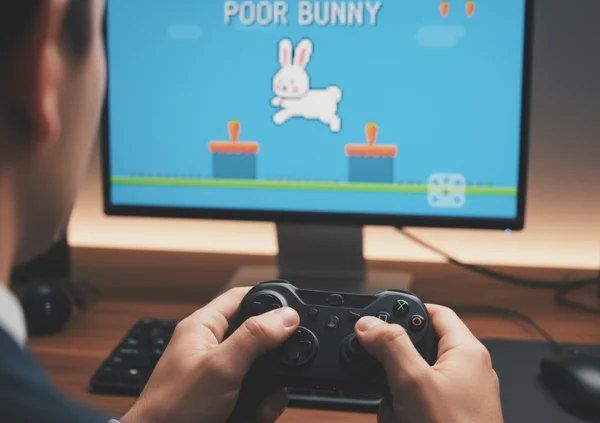
On the other hand, many veteran gamers prefer using a controller. If you have an Xbox or PlayStation controller, you can plug it in via USB or connect via Bluetooth. The joystick offers 360-degree comfort, which some find better for long sessions. Here is a quick comparison to help you choose:
- Keyboard: Best for rapid direction changes and high-speed "Versus" matches. It offers the lowest latency for most players.
- Controller: Best for ergonomic comfort and a relaxed "Co-op" experience. The analog sticks allow for smoother movement transitions.
To set up a controller, simply connect it to your PC before opening your browser. Most modern browsers like Chrome or Edge will recognize the device instantly. If the keys feel slow, check your keyboard repeat rate in your operating system settings. This ensures there is no delay when you hold down a key to move your bunny.
Performance Tuning for Different PC Specs
Even though Poor Bunny is a web-based game, it still uses your computer's resources. If you have an older laptop, you might notice "stuttering" or lag. This usually happens because the browser is fighting for memory with other open tabs. To fix this, always close unnecessary programs before you try it now.
Another pro tip is to enable "Hardware Acceleration" in your browser settings. This allows the game to use your graphics card instead of just the processor. If you are on a high-end gaming PC, you likely won't need this, but for office laptops, it makes a huge difference. Also, remember to clear your browser cache every once in a while. A "clogged" browser can lead to slow loading times for your favorite bunny skins.
Additionally, check your browser zoom level. Sometimes, playing at 110% or 90% zoom can cause the pixel art to look blurry or cause slight input lag. For the most responsive experience, keep your browser zoom at exactly 100%. This ensures the physics engine and the visual rendering stay perfectly synced.
Poor Bunny Mobile Mastery: Phone & Tablet Optimization
One of the best things about Poor Bunny is its "Unblocked" status. This means you can often play it in places where other games are restricted. Playing on a mobile phone or tablet is the ultimate way to enjoy the game during a commute or while waiting for a friend. However, moving from physical keys to a glass screen can be tricky.
Touch Controls vs. External Controllers: Mobile Input Options
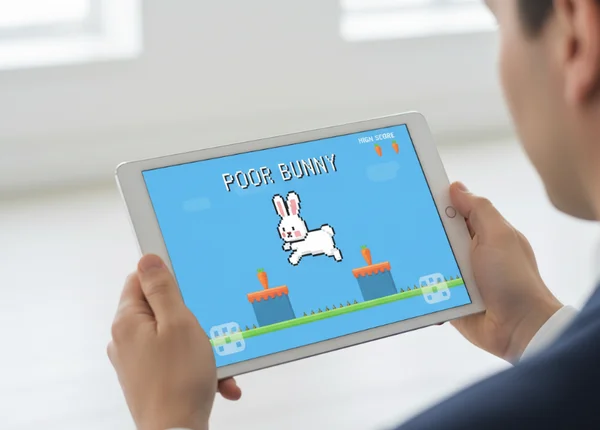
On a mobile device, you primarily use "Swipe" or "Tap" controls. This feels very natural, but screen size matters. Playing on a small phone requires very short, quick swipes. Playing on a large tablet like an iPad gives you more room, but your hands might get tired faster. To master mobile play, you should adjust your touch sensitivity in the game menu if the bunny feels too "slippery."
If you find touch controls difficult, remember that many tablets now support Bluetooth controllers. Pairing a small travel controller with your tablet turns it into a portable gaming console. This is the secret weapon for players who want to check it out while traveling. Also, make sure your screen is clean! A single smudge can cause the game to misread your swipe, leading to a direct hit from a trap.
Battery Life and Data Usage Tips
Mobile gaming can drain your battery fast, particularly with bright screens. Poor Bunny's vibrant colors and fast animations put extra demand on your phone's processor. To play longer, try lowering your screen brightness to about 50%. You can also turn off background app refresh to save energy while you are in the middle of a high-score run.
When it comes to data, Poor Bunny is very efficient. Because it is a streamlined HTML5 game, it does not require massive downloads. However, if you are on a limited data plan, try to load the game while on Wi-Fi. Once the assets are loaded in your browser, the actual gameplay uses very little data. This makes it perfect for a quick round of Poor Bunny unblocked at school or the office without worrying about your data cap.
Maintaining Consistency Across All Devices
The real challenge for any fan of the game is staying consistent. If you play differently on your phone than you do on your PC, your muscle memory will get confused. To become a top-tier player, you need a strategy that keeps your skills sharp regardless of the hardware in your hands.
Account Syncing and Progress Preservation
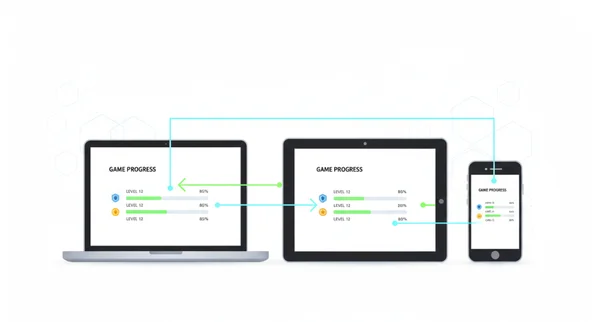
Nothing is more frustrating than unlocking a rare skin on your PC and finding it missing on your phone. As a browser game, Poor Bunny uses "Local Storage" to save your progress. This means your high scores and unlocked skins are stored specifically in your browser.
To keep your progress consistent, try to use the same browser account (like Google Chrome Sync) on all your devices. Can't find your unlocked skins? Check if you're in "Incognito" or "Private" mode. These browsing modes don't save your data after you close the tab. By staying logged in to your browser, you ensure that your journey to collect all 100+ skins stays on track every time you visit the site.
Cross-Platform Troubleshooting Common Issues
Sometimes things go wrong. You might experience a "black screen" or a game that won't load. Usually, this is a cross-platform compatibility issue. If the game runs slow on mobile but fast on PC, try updating your mobile OS. Older versions of Safari or Android Chrome might struggle with the latest Unity WebGL features.
If your controls feel "stuck," it is often due to a ghost input. This happens if you have a controller plugged in while trying to use a keyboard. Simply unplug the unused device and refresh the page. For mobile users, if the game is laggy, try closing all other browser tabs. Mobile browsers are notorious for "sleeping" tabs, which can still hog memory in the background. Keeping a clean workspace is the best way to play for free without any technical headaches.
Another common issue is audio lag. If the sound effects of the traps are out of sync with the visuals, it usually means your device is struggling to keep up with the frame rate. Lowering the quality settings or ensuring your device is not in "Power Saving Mode" can often fix this immediately.
Your Ultimate Cross-Platform Poor Bunny Experience
Mastering Poor Bunny comes down to one thing: adaptability. Whether you are using a mechanical keyboard on a desktop or swiping on a smartphone, the goal remains the same: collect those carrots and avoid the traps! By following the optimization tips in this guide, you can ensure that your gameplay is smooth, responsive, and consistent across every device you own.
Here's what to keep in mind as you play across devices:
- PC users: Focus on performance tuning and choose the input (keyboard or controller) that fits your style. Keep your browser zoom at 100% for the best clarity.
- Mobile users: Keep your screen clean, manage your battery, and don't be afraid to use a Bluetooth controller for better precision.
- Everyone: Use a consistent browser setup to keep your skins and high scores synced across different hardware.
The world of Poor Bunny awaits with exciting challenges, and you're now equipped to conquer them wherever you are! Don't let a change in location stop your winning streak. Ready to experience Poor Bunny at its best on every device? Head over to poorbunny.net now and put these cross-platform tips to the test!
FAQ Section
Does Poor Bunny save my progress across devices?
Currently, Poor Bunny saves your high scores and unlocked skins using your browser's local storage. This means if you play on Chrome on your PC, your progress is saved there. To see the same progress on another device, ensure you are using a synced browser profile or the same account settings. We always recommend checking that you aren't in private browsing mode so your carrots stay saved!
Why do my controls feel different on mobile vs. PC?
Controls feel different because of the physical nature of the input. A keyboard uses digital "on/off" switches, while a touchscreen relies on the speed and length of your swipe. To bridge the gap, practice on one device to build muscle memory, or use a controller on both platforms for a more unified feel. You can try our free tool on different devices to see which one fits your reaction speed best.
Can I use a controller with Poor Bunny on mobile?
Yes! Most modern smartphones and tablets support Bluetooth controllers like the Xbox Wireless Controller or the DualSense. Once paired in your phone's settings, the game should recognize the input automatically. This is a great way to get "PC-level" precision while you are away from your desk.
Why does Poor Bunny run slower on my older device?
Older devices often have less RAM and weaker processors. Since the game runs in a browser, it needs a bit of power to handle the physics and animations. To speed things up, close all other apps and browser tabs. Ensuring your browser is updated to the latest version can also provide a significant performance boost.
Is there a way to improve touch sensitivity for mobile play?
If the bunny feels too fast or too slow, check the in-game settings menu. Some versions of the game allow you to toggle sensitivity. Also, make sure your hands are dry and your screen is free of oils. Even a small amount of moisture can interfere with how the browser detects your movement, causing the bunny to jump at the wrong time.
How many skins can I unlock in the game?
There are currently over 100 unique skins to collect. Each one can be unlocked by achieving certain milestones or collecting a specific number of carrots. Playing across different devices is a great way to keep the grind going until you have found every single one. You can start playing now to see how many you can find!
Is Poor Bunny completely free to play?
Yes, the game is free to play in your web browser. There are no mandatory downloads or installations required. Whether you are on a high-end gaming rig or a basic smartphone, you can access the full game experience without any cost.