Poor Bunny Performance Guide: Lag-Free on Low-End Devices
Is your gameplay more lag than leap? If you are playing on an older device or a slow network, you are not alone. Many players struggle with choppy frames and delayed controls that make collecting carrots feel impossible. Do you find yourself missing jumps because the game freezes for a split second? This guide reveals tested performance hacks to transform your experience from frustrating to fluid. By the end of this article, you will be able to enjoy smooth, high-speed adventures regardless of your device specs.

The secret to a high score in this addictive bunny platformer is precision. Even a tiny bit of lag can cause you to hit a trap or miss a vital carrot. Before we dive into the technical steps, you should ensure you are using the official version of the Poor Bunny online game, as it is optimized for the best web performance. Let’s look at how you can make your browser and device run this title like a dream.
Browser Tweaks for Better Poor Bunny Performance on Slow PCs
Since this is a browser-based HTML5 game, your web browser is the most important factor in how it runs. If your browser is cluttered or poorly configured, even a powerful computer might experience lag. Optimizing your browser is the fastest way to get back to the action without interruptions.
Clear Your Cache and Disable Unnecessary Extensions
Every time you browse the web, your browser stores temporary files called "cache." Over time, this cache can become corrupted or too large, slowing down how the browser processes game data. Is the game running slowly after a long browsing session? Clearing your browser data can provide an immediate speed boost.
Additionally, browser extensions—especially ad blockers or "beautifier" tools—run in the background and consume precious RAM and CPU power. When you play Poor Bunny with low graphics, try disabling any extensions you aren't using. This frees up resources so your browser can focus entirely on rendering the bunny's movements and the falling obstacles.
Switch to Performance Mode in Your Browser
Modern browsers like Google Chrome and Microsoft Edge now include a "Performance" or "Efficiency" mode. This feature is designed to limit the resources used by background tabs. To ensure the best experience, go to your browser settings and enable these modes.
When you have multiple tabs open, the browser might try to share power between all of them. By focusing the energy on your active tab, you ensure that the action receives the maximum possible processing power. This is a game-changer for users playing on school laptops or older office computers where multitasking often causes the system to hang.
Enable Hardware Acceleration for Smoother Graphics
Hardware acceleration is a setting that allows your browser to use your computer’s graphics card (GPU) instead of just the main processor (CPU) to display images. Because the game features many moving parts and animations, your CPU can get overwhelmed easily.
You can usually find this setting under the "System" or "Advanced" section of your browser settings. Look for "Use hardware acceleration when available" and make sure it is toggled on. Once enabled, you will notice that the animations feel much more fluid and the "stuttering" effect during intense levels disappears. If you want to test this immediately, jump into the Poor Bunny game and see if your rabbit moves more smoothly.
In-Game Settings to Boost Performance
While browser settings handle the foundation, the game itself has features that can be adjusted to help it run better on low-spec hardware. The developers have included several options that allow you to balance visual quality with gameplay speed.
Lower Graphics Quality for Better Frame Rates
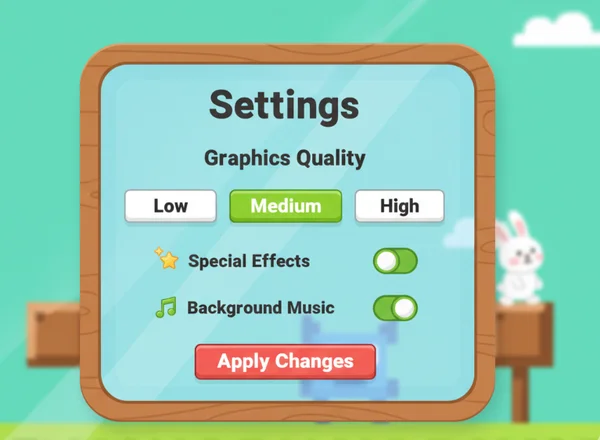
Frame rate, or FPS (Frames Per Second), is the most critical metric for any platformer. If your FPS is low, the game looks like a slideshow, and your inputs will feel "heavy." In the main menu or settings gear icon, look for graphics quality options.
On low-end devices, switching from "High" to "Low" or "Medium" quality can significantly increase your FPS. While the graphics might look slightly less sharp, the gameplay will be much more responsive. In a game where every millisecond counts toward a high score, a higher frame rate is always better than pretty graphics.
Disable Special Effects and Animations
The game features cute visual effects, like particles that fly when you collect a carrot or animations for the various traps. While these look great, they require extra processing power to calculate. If you are using a very old phone or a basic Chromebook, these small effects can add up and cause lag.
Check the settings for toggles related to "Particles," "Screen Shake," or "Background Animations." Turning these off simplifies the visual load. This allows the game engine to focus on the core mechanics—your bunny’s position and the hitboxes of the traps—which helps you stay alive longer and unlock more bunny platformer skins.
Optimize Sound Settings for Reduced Lag
It might surprise you, but audio processing can sometimes cause performance dips in web games. Is your device struggling to sync sounds with gameplay? This causes audio lag—or even brief visual freezes.
If you find that the game stutters every time a sound effect plays, try turning off the background music while keeping the sound effects on. If the lag persists, turning off all sounds can sometimes provide that final bit of "breathing room" your CPU needs to maintain a steady frame rate. You can always listen to your favorite music in a separate, lightweight app if you still want some tunes while you play.
Device Hacks: Optimize Poor Bunny on Phones & Low-Spec Computers
Sometimes the issue isn't the browser or the game, but the operating system itself. Different devices handle web games differently. Here is how you can optimize your specific hardware for the best experience.
Android Performance Tips for Older Phones
If you are playing on an older Android smartphone, background apps are your biggest enemy. Android tends to keep many apps "alive" in the memory even when you aren't using them. Before you start your run, close all other apps like social media or maps.
You can also go into "Developer Options" in your Android settings and set the "Background process limit" to a lower number. Another trick is to clear the cache of the browser app itself from the Android "Apps" settings menu. This ensures that the phone's limited RAM is dedicated entirely to your carrot-collecting mission.
iOS Settings to Improve Gameplay on Older iPhones
For those using older iPhones or iPads, Safari is generally the best-optimized browser. However, if your battery is low, iOS may enter "Low Power Mode." This intentionally slows down the processor to save energy and will cause the game to lag significantly. Always make sure your device is charged or plugged in, and turn off Low Power Mode for the best performance.
Head to Safari’s "Advanced" settings. Under "Experimental Features," confirm WebGL is enabled. This powers the game’s graphics smoothly. Keeping your iOS software updated is also vital, as Apple frequently releases performance patches for the Safari engine that make games on the official site run better.
PC Optimization for Low-Spec Computers
On a PC or Mac, the "unblocked" nature of the game makes it a favorite for quick breaks. If you are on a slow computer, the first thing you should do is open your Task Manager (Ctrl+Shift+Esc on Windows) and see if any other programs are hogging the CPU or Disk usage.
Background tasks—Windows Updates, antivirus scans—kill game performance. Pause these before playing. Additionally, if you are on a laptop, make sure your power plan is set to "High Performance" instead of "Power Saver." Being plugged into a wall outlet usually unlocks the full potential of your computer's hardware, allowing for a lag-free experience.
Turbocharge Your Bunny: Final Tips for Smooth Hopping
Tired of lag ruining your carrot-collecting spree? These tweaks will turbocharge your bunny—even on that dusty school Chromebook! You don't need a high-end gaming rig to set a new world record; you just need a setup that doesn't fight against you.
Keep these high-performance habits in mind:
- Clean your workspace: Clear browser cache and close background apps before you start playing the game.
- Prioritize speed: Use "Low" graphics settings and enable hardware acceleration in your browser.
- Power matters: Keep your mobile devices charged and your PC in high-performance mode.
Now that your setup is optimized, it's time to put those skills to the test. Whether you are aiming to unlock all 100+ skins or trying to beat your friend's high score in 1v1 mode, a smooth game is your best tool for success. Head over to the homepage and play Poor Bunny now to see the difference for yourself! 🐰🥕
Performance FAQ
Why does Poor Bunny lag on my device?
Lag is usually caused by a lack of available system memory (RAM) or a slow processor (CPU). In many cases, it is not the game itself but the other background tasks your device is running. By following the browser and device optimizations mentioned above, you can usually fix these issues. Using the official Poor Bunny online version also ensures you are playing the most stable build.
Can I play on a 5-year-old phone?
Yes! The game is built using HTML5 technology, which is designed to be lightweight. If you have an older phone, simply make sure to close all other apps, use a modern browser like Chrome or Safari, and set the in-game graphics to "Low." This should make the game playable even on aging hardware.
What browser works best on low-end devices?
For Windows and Android, Google Chrome is often the fastest due to its efficient V8 engine. For iOS and Mac, Safari is the most optimized. If you are still experiencing lag, some users find that "Brave" or "Microsoft Edge" provides a slightly better performance by blocking heavy background scripts.
Will lowering graphics affect my score?
Actually, lowering graphics often helps your score! While the game might look a bit simpler, the increased frame rate makes your bunny much more responsive to your commands. In a game about timing and reflexes, a smooth "Low Graphics" experience is much better than a laggy "High Graphics" one.
Are there any settings to reduce data usage?
Poor Bunny is already very efficient with data. However, if you are on a limited mobile plan, disabling the background music and special effects can slightly reduce the data processed. The best way to save data is to keep the game tab open rather than refreshing it, as the browser will keep the game files in its cache. Ready to start? Visit the official game site and start your adventure!